How to install Wifibox on FreeBSD
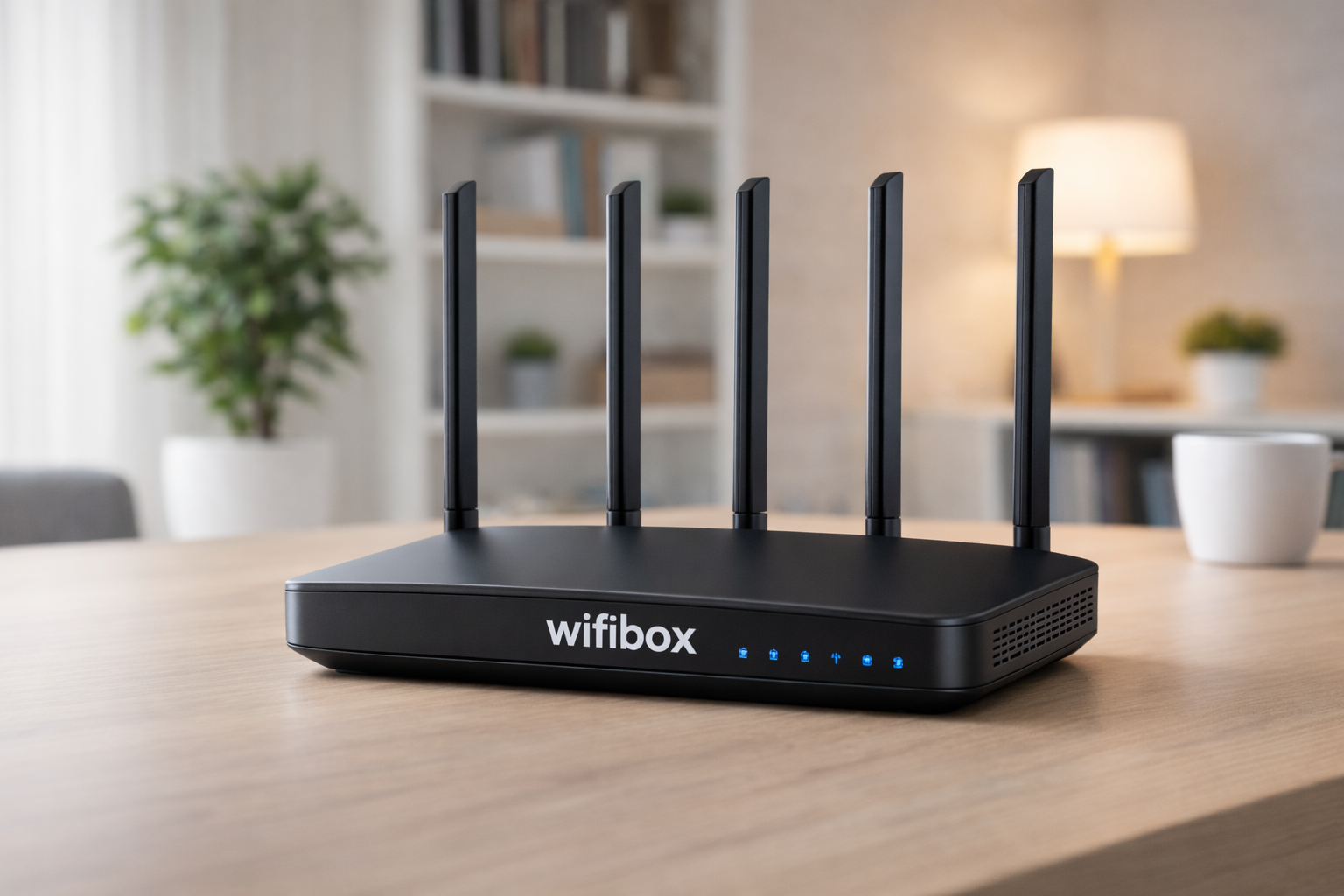
This article describes how to install Wifibox on FreeBSD.
Motivation
While more and more drivers for wireless network cards become available, some of the newer cards might still not have a supported driver on FreeBSD. The wifibox project helps to address this shortcoming. Under the covers it uses bhyve to run a Linux virtual machine. It passes the wireless hardware directly to the Linux guest, which then shares the network connection back to the host.
Limitations
While using Wifibox gives you decent performance, its performance is considerablly lower than that of a native FreeBSD driver.
Installation
First install wifibox with (this requires root privileges, or use su / doas)
pkg install wifiboxQuery installed wireless card
The first step is to determine the current address of your wifi card. The pciconf command reports the current driver and address.
grep -B2 -A1 -i wireless
rtw89@pci0:2:0:0:        class=0x028000 rev=0x00 hdr=0x00 vendor=0x10ec device=0xb852 subvendor=0x103c subdevice=0x88e3
    vendor     = 'Realtek Semiconductor Co., Ltd.'
    device     = 'RTL8852BE PCIe 802.11ax Wireless Network Controller'
    class      = network
In my case the driver name is rtw89 and the pci address is 2:0:0. If it cannot find the driver for the wireless card it will “none«number»”.
Changes to /etc/rc.conf
Add the following four lines to the file /etc/rc.conf
devmatch_enable="YES"
devmatch_blocklist="if_rtw89"
wifibox_enable="YES"
ifconfig_wifibox0="SYNCDHCP"
In case you need a different driver replace rtw89 with the driver name that was reported in the previous command. If it didnt find a driver in the previous command, the first two lines are not needed. The devmatch entries are needed so the system does not load the driver for the wireless device.
Changes to /boot/loader.conf
Add the following changes to the file /boot/loader.conf
vmm_load="YES"
if_tap_load="YES"
linux64_load="YES"
hw.vmm.ppt_devs="2/0/0"
You need to replace the setting of hw.vmm.ppt_devs with the pci address that was reported in step 1. In my case it uses the pci address “pci0:2:0:0:”.:w
Changes to bhyve.conf
Edit the file /usr/local/etc/wifibox/bhyve.conf and change the line which begin with “passthru”:
passthru=2/0/0The value of passthru needs to match your pci address.
Store your wifi passphrase
The last step is to configure your wifi network name and wifi password. You use the wpa_passphrase command. The change needs to be made with root privileges.
wpa_passphrase ssid-name password > /etc/wpa_supplicant.conf
cp /etc/wpa_supplicant.conf /usr/local/etc/wifibox/wpa_supplicant
Now restart the system and it should automatically startup with wifi enabled. The startup might take a bit longer because of the startup of wifibox.